In Adobe Experience Manager (AEM), you can prevent a Workflow Launcher from triggering when changes are made by specific users or automated processes. This is especially useful when you want to avoid triggering workflows during metadata modifications via specific services.
How Workflow Launchers Use JCR Observation Events
Workflow launchers in AEM rely on JCR Observation Events to listen for changes within the repository and trigger workflows accordingly.
Each observation event carries user data (a session property), which can be set programmatically when changes are made via a JCR session.
If you set this user data to a specific string during content modification, you can configure your workflow launcher to ignore events that contain this user-data string, effectively preventing unwanted workflow triggers.
How to Set User Data to Stop Workflow Launchers
To utilize this feature in your update logic, follow these steps:
- Perform your changes to content or asset metadata.
- Set a user data string on the session’s ObservationManager.
- Commit (save) the session.
The order of steps 1 and 2 does not matter, but both must be completed before the session is saved.
OOTB Usage in AEM
The default “DAM Asset Update Workflow” launcher includes an exclusion for event-user-data:changedByWorkflowProcess which prevents recursive triggering of workflows when workflow processes themselves modify assets. You can use and customize similar user data values for your workflows.
Example Implementation
- Setting User Data in your JCR Session
When modifying content programmatically, set your session user data as shown below before saving the session:
        Session session = resolver.adaptTo(Session.class);

        try {
            // Set user data to prevent workflow launcher triggering
            session.getWorkspace().getObservationManager().setUserData("doNotTriggerRfAWorkflow");

            // Access the asset's metadata node
            Node metadataNode = session.getNode(assetPath + "/jcr:content/metadata");

            // Update the metadata property
            metadataNode.setProperty(METADATA_PROPERTY, newTitle);

            // Save JCR session
            session.save();
Complete code here: UpdateAssetMetadataServlet
2. Configuring the Workflow Launcher to skip triggering when User Data is detected
In your Workflow Launcher configuration, add an exclusion config for your chosen user data string:
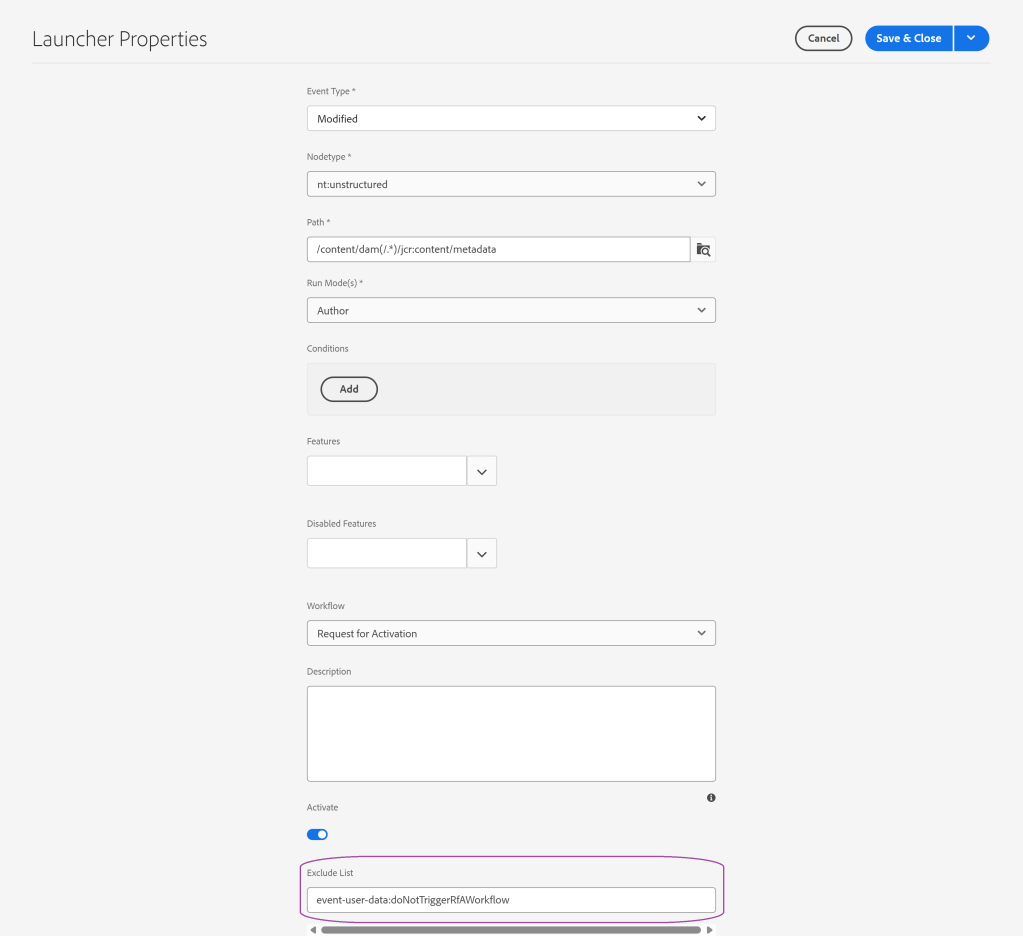
This ensures the workflow launcher ignores events where the user data matches “doNotTriggerRfAWorkflow”.
Using this approach provides control over when workflows should be triggered. It helps avoid unnecessary executions during certain automated processing while preserving workflow functionality for regular content changes.
 Adobe Experience Cloud Blog