If you’re working with Adobe Experience Manager (AEM) and using Dynamic Media for image delivery, you might run into an issue where your Image Presets aren’t syncing or publishing correctly. This can be especially frustrating when you’re trying to maintain consistent image styling across your site.
Don’t worry—this guide walks you through a few proven steps to troubleshoot and resolve the issue.
🔍 Step 1: Recheck Your Dynamic Media Configuration
One common reason for preset sync issues is an outdated or misconfigured Dynamic Media setup—especially if you’ve recently changed AEM runmodes (e.g., from s7connect to dynamicmedia_scene7).
What to do:
- Delete the previous Scene7 configuration from CRXDE if it’s still lingering.
- Recreate your Dynamic Media configuration:
- Go to AEM Start > Tools > Cloud Services > Dynamic Media Configuration.
- Delete any existing configuration.
- Create a new one using the correct credentials and settings.
- Save and test the connection.
This fresh setup often resolves any hidden inconsistencies introduced by a runmode switch.
🔧 Step 2: Use the Sample Manager Diagnostic Tool
Adobe provides a built-in diagnostic page that can help identify syncing problems between AEM and Dynamic Media.
Access it here:
👉 https://localhost:4502/libs/dam/gui/content/s7dam/samplemanager/samplemanager.html
This tool gives you real-time visibility into:
- Sample presets
- Asset sync status
- Sync errors (if any)
Follow the instructions on the page to verify whether things are working as expected.
🔐 Step 3: Test Custom Image Presets
Once your configuration looks good and the diagnostics are clean, it’s time to test your own presets.
Step 3.1: Create or Edit a Preset
- Use Adobe’s guide to create or edit an Image/Viewer Preset.
- After saving, the preset should auto-publish.
- In AEM, check that its status shows as published, and confirm it’s also visible in Dynamic Media.
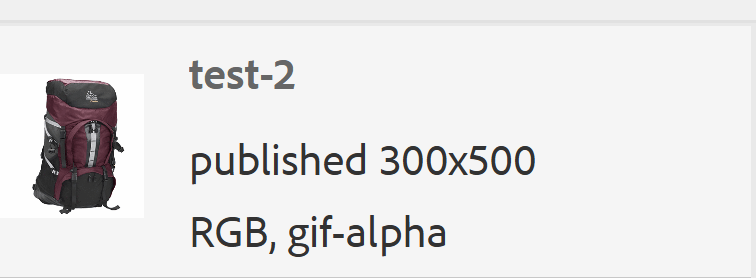
⚠️ If it doesn’t auto-publish within 10 minutes, skip to Step 4 (Permissions fix), then come back here and try again.
Step 3.2: Validate the Preset on an Image
Pick any image from AEM and:
- Go to the Renditions tab.
- Check if your preset appears in the list.
- If the image is published and synced with Dynamic Media, you’ll see a URL button for that preset.
👉 If the preset leads to a broken image, the asset might not have synced properly.

In that case:
- Run the “DAM Update Asset” or “Dynamic Media: Reprocess Assets” workflow on the image.
- This re-uploads the asset to Dynamic Media
- Publish the asset and your preset should then start working.
🔒 Step 4: Fix Permissions on the /conf Node
Sometimes the problem isn’t technical—it’s just permissions. If the user that handles sync tasks (usually dynamic-media-s7sync) doesn’t have access to /conf, the sync process can silently fail.
How to fix it:
- Open AEM UI.
- Go to Tools > Security > Permissions.
- Select the
dynamic-media-s7syncuser or group in the left panel. - In the right panel, add the path
/conf. - Set the permission level to
jcr:all. - Save the changes.

Once done, retry Step-3. You should now see successful syncing and publishing.
Happy debugging! 👨💻👩💻
 Adobe Experience Cloud Blog