AEM user permissions control what users can or can’t do in AEM. They determine what content users can access, create, modify, delete, publish or share. User permissions are essential for maintaining security and ensuring that only authorized users can perform specific actions.
Why are they important?
Effective user permission management is crucial for several reasons:
- Security & Compliance: Many regulations require organizations to implement controls to restrict access to sensitive information.
- Efficiency: Assigning appropriate permissions can streamline workflows and improve productivity by ensuring that users have the access they need to perform their jobs.
- Cross-Functional Collaboration: With the right permissions in place, teams can collaborate seamlessly across departments and geographical locations. This fosters a culture of collaboration, innovation, and knowledge sharing within the organization.
- Data Integrity: Properly managed user permissions help maintain the integrity of your data by preventing unauthorized modifications or deletions. This ensures that your content remains accurate and reliable.
The Challenge of Managing AEM User Permissions:
- Balancing Granularity and Efficiency:
- Granular Permissions: Defining highly specific permissions for each user and content item can become incredibly complex, especially for large deployments with many users and content pieces. Managing individual exceptions can be time-consuming and error-prone.
- Overly Broad Permissions: Assigning broad permissions to simplify management can lead to security vulnerabilities and potential compliance issues. Users might have access to information or functionalities they don’t need, increasing the risk of accidental exposure or misuse.
- Complexities of Inheritance: In order to determine the access for a user, you need to both understand the ACLs applied at any parent level in the tree as well as all of the ACLs applied via the users group membership, including indirect group membership at each level.
- Unintended Access: Permissions can be unintentionally inherited from parent folders, granting access to users who shouldn’t have it. This can be difficult to track and debug, especially in deeply nested content structures.
- Limited Flexibility: Inheritance can restrict the ability to assign specific permissions at a granular level, making it challenging to accommodate unique requirements for different content items.
- Keeping Up with User Changes:
- Manual Updates: Regularly reviewing and updating permissions as user roles and responsibilities change can be a burden, especially for large teams. This can lead to outdated permissions and potential security gaps.
- Provisioning Challenges: Integrating user permission management with external identity providers can be complex, requiring additional configuration and ongoing maintenance.
- Lack of Standardization: Inconsistent permission practices across different AEM instances or teams can lead to confusion and security risks.
Tips for Effortless Control
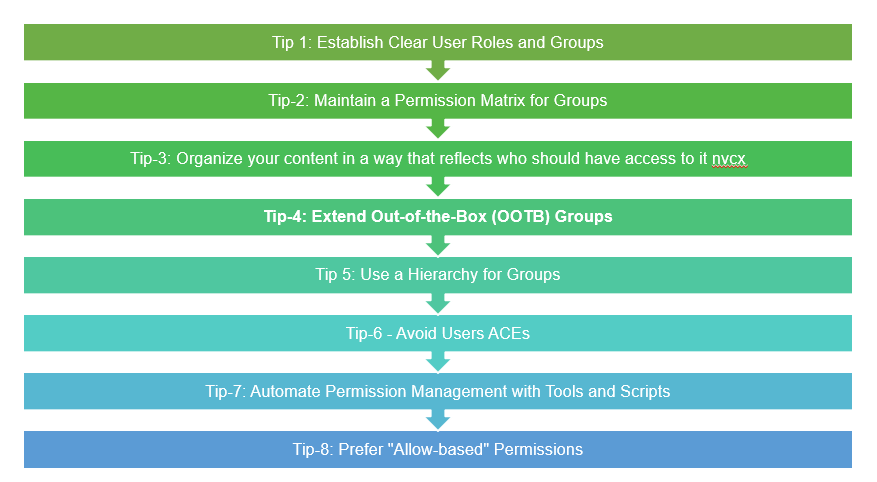
Tip 1: Establish Clear User Roles and Groups:
In AEM, it’s helpful to have clear roles and groups for different jobs. For instance:
- You might have a “Writers” team who create content & edit articles (Content Author group).
- Then, there’s a “editors” team who review & approve content before it goes live. (Content Reviewer group).
Benefits:
- Easy Management: Assign permissions by group, not individual.
- Enhanced Security: Editors control publishing, writers can’t modify live content.
- Clear Ownership: Section editors manage their content.
Tip-2: Maintain a Permission Matrix for Groups:
Visualize user permissions in AEM with a permission matrix. It details which groups can access specific areas and what actions they’re authorized to perform.
Here’s a simple permission matrix:
| Group | Content Folder | Permissions |
| Writers | /content/techrevel/articles | Read, Write |
| Reviewers | /content/techrevel/articles | Read, Write, Delete, Publish |
| Administrators | /content/techrevel/articles | Full Control |
Benefits:
- Crystal-Clear Access: Easily see who has permission to do what.
- Effortless Management: Streamlines assigning and reviewing permissions.
- Audit Trail: Tracks permission changes for better accountability.
Tip-3: Align Content Organization with Permissions:
When setting up permissions in AEM, it’s important to organize your content in a way that reflects who should have access to it. This means structuring your folders and files based on the level of access each group or individual needs.
Example:
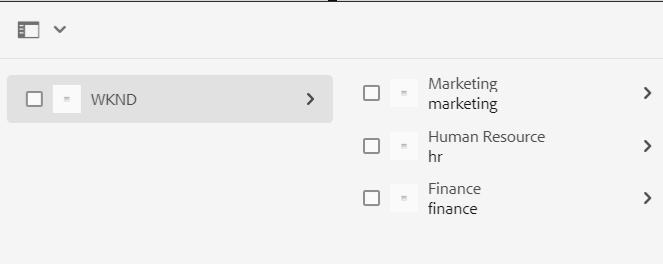
Let’s say you’re managing a company intranet using AEM, and you have different departments like Marketing, HR, and Finance. Each department has its own set of documents and resources that should only be accessible to members of that department.
Here’s how you might organize your content:
- Marketing Folder: Contains marketing-related documents and assets. Access restricted to Marketing team members.
- HR Folder: Stores confidential HR documents like employee records and payroll information. Access limited to HR staff and authorized personnel.
- Finance Folder: Houses financial reports and budget documents. Access granted to Finance team members and designated executives.
Benefits:
- Simplified Permission Management: Group permissions based on folder structure, reducing the need for complex individual user access control.
- Security: Sensitive information stays protected, only accessible to those who need it.
- Find It Fast: Organized content makes it easy for users to locate what they need.
Tip-4: Extend Out-of-the-Box (OOTB) Groups
When managing user permissions in AEM, leveraging Out-of-the-Box (OOTB) groups can streamline the process and ensure that users have access to essential areas and features without the need for extensive configuration. These pre-defined groups come with built-in access rights to key areas of the AEM system, such as /libs and /apps, which are crucial for accessing the AEM user interface (UI) and performing tasks.
Example:
Let’s consider the scenario where you need to set up a group for user administrators who are responsible for managing users, groups, and permissions within AEM.
User Administrator Group: Instead of creating a new group from scratch, you can extend an existing OOTB group, such as “user-administrators”. These groups typically have access to administrative tools and relevant ACLs (Access Control Lists) to manage users, groups, and permissions effectively.
Benefits:
- Reduced Complexity: Saves you time by using pre-defined permissions.
- Standardized Approach: Creates a consistent permission structure across your AEM environment.
Tip 5: Use a Hierarchy for Groups & Give Just Enough Access Along the Way
When managing user permissions in AEM, it’s beneficial to organize groups in a hierarchical manner and grant access gradually, ensuring that users only have the permissions necessary to fulfill their roles. This approach simplifies permission management and adheres to the principle of least privilege, promoting security and efficiency within the AEM environment.
Example: Imagine you’re managing permissions for a content management system in AEM, and you have different user roles with varying levels of access:
- Read-Only Users: These users only need to view content but shouldn’t be able to make any changes.
- Author Users: These users need to edit content and add new content, but they shouldn’t be able to delete anything.
- Editor Users: These users need to add, edit, and publish content, but they shouldn’t be able to delete anything.
- Admin Users: These users need full control over content, including the ability to delete and publish content.

Benefits:
- More Control: By organizing groups in a clear order, we can control who gets access to what in more detail.
- Growth-Friendly: Our system can easily grow and change over time. We can add new groups or change existing ones without causing big problems.
Tip 5: Prefer “Allow-based” Permissions
In AEM, it’s best to focus on giving permission rather than taking it away. When a user is part of different groups with conflicting rules, using deny-based permissions can lead to unexpected outcomes. It’s better to use allow-based rules using rep:glob. This method gives you more control over who can do what. Let’s see why this is a good idea with an example:
Understanding Deny-Based Permissions:
Use-case 1: Controlling Access for Agency Authors
Consider your site looks like this
/content
    /techrevel
         /marketing
         /hr
         /finance
Challenge: All authors, including those from a collaborating agency, currently have full access to the entire website. However, you want to restrict the agency authors’ access to exclude marketing content.
Current State: A parent group named “parent-grp” grants read access to all content across the website.
Solution: Create a child group for agency authors and provide deny read access.
Outcome:
- All authors (except agency authors) maintain full access to the entire website.
- Agency authors have access to all content except the “/content/techrevel/marketing” page and its subpages. This ensures their work remains focused on non-marketing areas while maintaining their broader access to relevant information.
| Folder | Group | Type | Permission |
| /content | parent-grp | Allow | Read |
| /content/WKND/marketing | Child-grp | Deny | Read |

Although the deny based worked well in a hierarchial set-up. There is a better way. Use case-2 discusses the challenge with deny-based in detail.
Use case 2: Membership of multiple groups with conflicting permissions
Lets extend the previous scenario, where we have specific authors for a content type.
- Marketing-authors for marketing content. HR-authors have no visibility to it
- HR-authors for HR content. Marketing-authors have no visibility to it
The permission matrix might look like:
| Parent-Group | Group | Type | Access | Pages |
| Parent-grp | Allow | Read | /content | |
| Parent-grp | Marketing-authors | Allow | (Read from parent-grp), Write, Delete | Marketing |
| Parent-grp | Marketing-authors | Deny | Read | HR |
| Parent-grp | HR-authors | Allow | (Read from parent-grp), Write, Delete | HR |
| Parent-grp | HR-authors | Deny | Reads | Marketing |
Challenge: Consider a super-user that belongs to both Marketing-authors and HR-authors groups. Here the use of deny-based permissions can lead to unexpected outcomes. Specifically, the super-user might lose read access to both Marketing and HR pages, which is not the intended behavior. The denial from the hr-authors group revokes read permission on marketing pages for the super-user.

Current Status: Even if explicit read permissions are provided for marketing-authors on marketing content and hr-authors on HR content, there are issues with ACL order. For instance, HR content remains inaccessible to the super-user despite explicit read permissions being set on content.
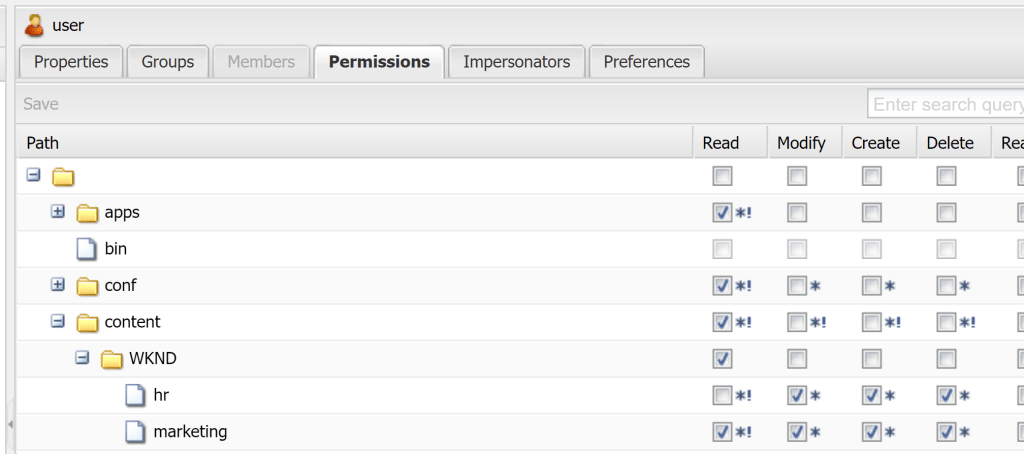
This discrepancy arises from the ACL order of allow and deny permissions on a node, necessitating the reordering of ACLs via “CRX Explorer > Security > Access Control Editor” for allow to have priority over deny.

The CRX Explorer used for ordering ACLs is inaccessible on AEM as a Cloud Service
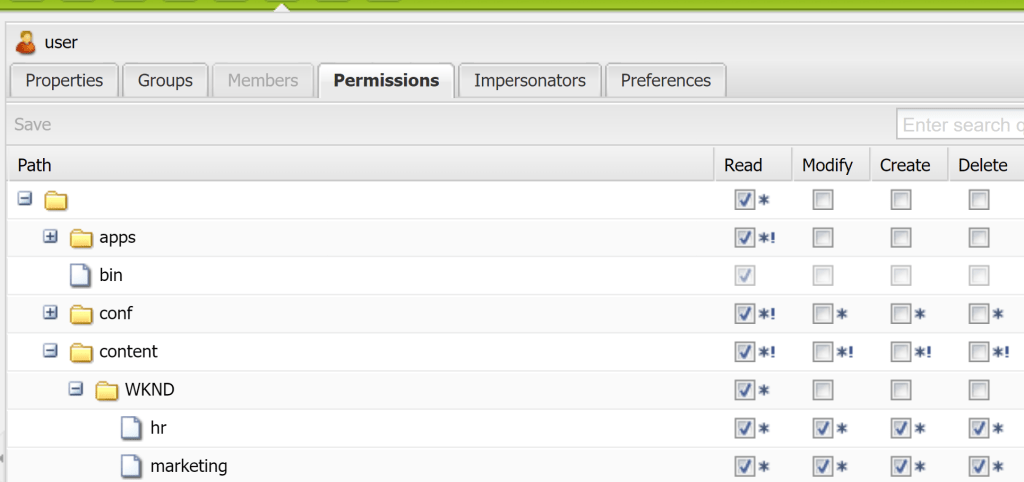
Solution: Replacing deny-based permissions with allow-based permissions resolves these issues.
By implementing following allow-based ACL matrix, the super-user gains access to both Marketing and HR content without encountering conflicting permissions.
| PATH | Group | TYPE | PRIVILEGES | RESTRICTION | NOTE |
| /content | Parent-grp | ALLOW | jcr:read | rep:glob=”” | Read permission to content node only |
| /content/WNKD | Parent-grp | ALLOW | jcr:read | rep:glob=”” | Read permission to WKND node only |
| /content/WNKD/hr | ALLOW | jcr:read | Read permission to HR sub-tree | ||
| /content/WNKD/marketing | ALLOW | jcr:read | Read permission to Marketing sub-tree |
An individual rep:glob entry for parent-grp will look like this. For above set-up, use Restrictions=rep:glob & Restriction Value=””

Result: The super-user now has access to Marketing and HR content without any unexpected restrictions. This is achieved by ensuring there are no conflicting permissions between denying access from one group and allowing access from another group.
Tip-7 – Avoid Users ACEs
While it might seem convenient to control access for each user individually, AEM recommends avoiding this approach. Here’s why:
- User-based permissions have priority over group permissions. This means even if a group is denied access, individual users within that group can still have access if they have their own permission. This can lead to confusion and unintended access scenarios.
- Management Complexity: As the number of users grows, managing individual permissions becomes cumbersome. It can also cause troubleshooting overhead while debugging access-related issues.
Instead, focus on using Group Permissions !!!
Tip-8: Automate Permission Management with Tools and Scripts
Setting permissions manually in AEM can be time-consuming and prone to errors. Instead, leveraging tools or scripts can streamline the process and ensure consistency across permissions configurations. Here’s why using tools/scripts is beneficial:
Benefits of using tools and scripts:
- Efficiency: Automate repetitive tasks, saving significant time and effort compared to manual configuration.
- Accuracy: Reduce the risk of human error by automating permission assignments based on predefined rules.
- Consistency: Ensure consistent and standardized access control across your AEM environment.
- Scalability: Easily manage permissions for large user bases and complex environments.
Details on various tools available, please refer to From Setup to Migration: Tools for ACL Management in AEM
Remember, a well-defined ACL strategy is crucial for protecting your valuable content and empowering your users within the AEM platform. By implementing these recommendations, you can create a secure and user-friendly environment that fosters collaboration and productivity.
 Adobe Experience Cloud Blog
2 thoughts on “AEM User Permissions: Tips for Effortless Control”