Content Delivery Network (CDN) and dispatcher headers are important components in Adobe Experience Manager (AEM) for optimizing website performance and security. Here’s an overview of these headers:
Browser Caching
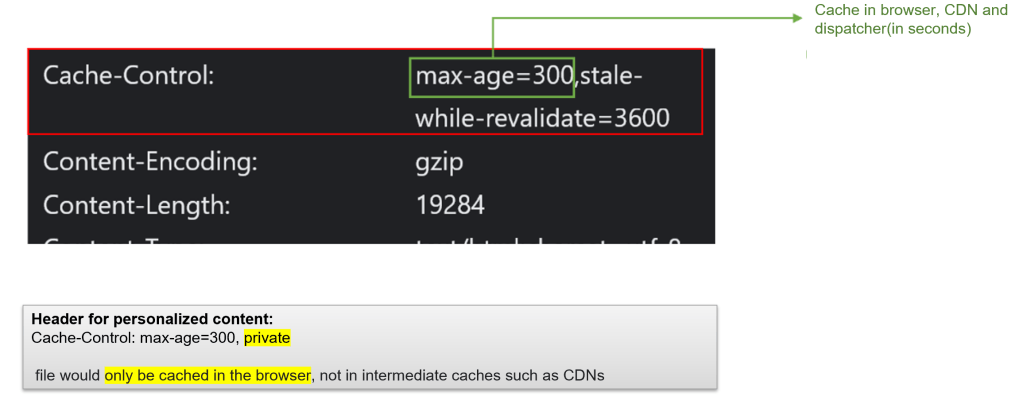
Browser caching is a fundamental performance enhancement method. When a user returns to a website, their web browser functions as the initial cache level. The control of this caching mechanism lies in the “Cache-Control: max-age” response header. Within the Cache-Control header, several directives play distinct roles:
- private: This directive ensures that the file is exclusively stored within the user’s browser cache and not in intermediate caches like CDNs. It proves valuable for pages containing personalized or user-specific content. For instance:
Cache-Control: max-age=300, private
- max-age: This directive specifies the duration (in seconds) during which the browser should retain a file before checking for updates.
Modern web browsers comprehensively support the Cache-Control header, rendering it a potent tool for enhancing webpage load times.
Content Delivery Network (CDN) headers:
A Content Delivery Network (CDN) functions as a geographically distributed network of servers aimed at delivering web content, including elements like images, videos, stylesheets, and JavaScript files, to users from locations physically closer to them. This strategic placement significantly reduces latency and enhances the speed at which websites load.
CDNs implement caching techniques akin to those utilized by web browsers, relying on HTTP response headers like Cache-Control. In cases where Cache-Control is absent, they turn to the Expires header.
Furthermore, CDNs often enhance caching and security by introducing or modifying headers. Common CDN headers include:
- Cache-Control: This header specifies the duration for which the CDN can cache the content. It encompasses various directives, such as:
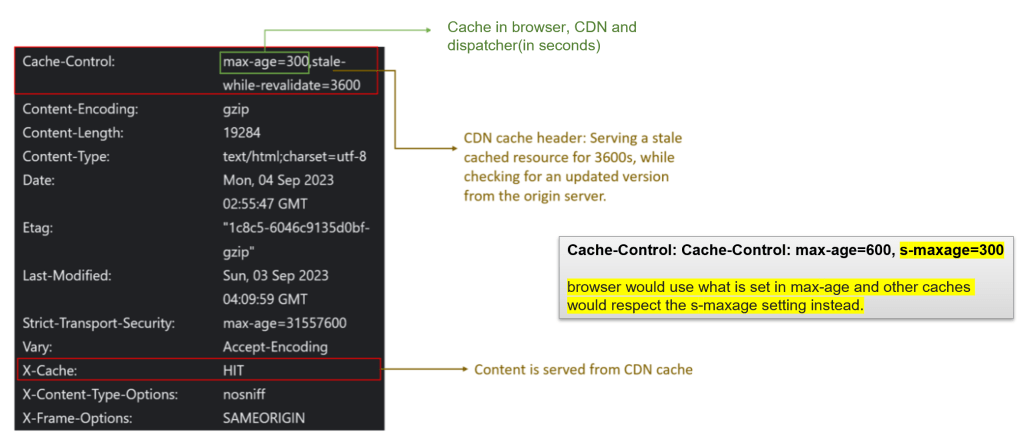
- stale-while-revalidate: This directive allows the server to continue serving a cached version of the resource (even though it’s considered stale or expired) while simultaneously initiating a revalidation process to fetch the updated content from the origin server. Example: “Cache-Control: max-age=600, stale-while-revalidate=3600.”
- “=3600”: The “3600” value represents the time duration in seconds. In this context, it indicates that the stale resource can be used for up to 3600 seconds (1 hour) while the revalidation process is underway.
- stale-if-error: directing the CDN to provide older content should an origin server error occur during revalidation.
- s-maxage: a directive allowing the establishment of distinct TTLs for shared caches like CDNs, as exemplified by “Cache-Control: max-age=600, s-maxage=300.”
- stale-while-revalidate: This directive allows the server to continue serving a cached version of the resource (even though it’s considered stale or expired) while simultaneously initiating a revalidation process to fetch the updated content from the origin server. Example: “Cache-Control: max-age=600, stale-while-revalidate=3600.”
- CDNs frequently include an “X-Cache” header, offering insights into whether the content was retrieved from the CDN cache or directly from the origin server. For instance, “X-Cache: HIT” indicates that the content was discovered in the CDN cache, whereas “X-Cache: MISS” signifies that it was obtained from the origin server or dispatcher.
It’s worth noting that CDNs often provide mechanisms for flushing their caches. Nevertheless, it’s important to acknowledge that such cache flushes may involve a propagation delay affecting all edge servers.
AEM Dispatcher Headers:
Dispatcher headers are typically added by the Adobe AEM Dispatcher to provide information about the request and its handling. Some common headers added by dispatcher in response include:
- TTL-based Content Expiry Mechanism (Cache-Control or Expires):
- TTL headers, such as Cache-Control or Expires, must be included in responses from the publish tier. They inform the dispatcher how long a cached file should remain in the cache.
- Last-Modified: The Last-Modified header specifies the last modification date of the requested content.
- Dispatcher: no-cache: This header instructs the dispatcher not to cache the response.The dispatcher removes this command before forwarding the response to the client.
- Content-Disposition: indicates if the content should be displayed in the browser or treated as an attachment to be downloaded.
- AEM, by default, denies HTTP requests from server names or hosts to the AEM publish/author instance. AEM checks the Referrer header configuration during an HTTP request. If the referrer is configured to allow the host(s), AEM fulfills the request. If not, AEM displays a “referrer not allowed” error message.
- Content-Type: define the media type or MIME type of the response content.
- X-Content-Type-Options: The X-Content-Type-Options header helps to prevent browsers from interpreting files as something other than what they are (e.g., preventing HTML files from being treated as scripts).

Appending headers to AEM pages
To add more headers to AEM responses via the Dispatcher, you need to configure the Dispatcher module to include the desired headers in the responses it serves.
Example: The provided link demonstrates the process of adding the following security-related headers to AEM responses:
- STRICT-TRANSPORT-SECURITY
- X-FRAME-OPTIONS
- CONTENT SECURITY POLICY (CSP)
- X-CONTENT-TYPE-OPTIONS
- FEATURE-POLICY
Configuring HTTP Headers on dispatcher for Forwarding to AEM instance
Custom client headers refer to HTTP headers that are added to or modified in client requests and responses when interacting with the AEM server. These custom headers can be used to convey additional information about the AEM request.
Here are some common use cases for custom client headers in AEM:
- Authentication and Authorization: Custom headers can be used to pass authentication tokens or authorization information to AEM, allowing you to implement custom authentication mechanisms or integrate with third-party authentication systems.
- Personalization: You can use custom headers to send user-related information or preferences to AEM, enabling personalized content delivery based on user attributes.
- Tracking and Analytics: Custom headers can carry tracking information or analytics data, which AEM can use to log user interactions, measure engagement, and generate usage reports.
- Security: Headers can be added to enhance security by enforcing certain security policies. Example Referrer header. AEM, by default, denies HTTP requests from server names or hosts to the AEM publish/author instance. AEM checks the Referrer header configuration (org.apache.sling.security.impl.ReferrerFilter) during an HTTP request. If the referrer is configured to allow the host(s), AEM fulfills the request. If not, AEM displays a “referrer not allowed” error message.
- Integration: When AEM is integrated with other systems or services, custom headers may be used to pass data necessary for these integrations, such as API keys, session identifiers, or custom metadata.
Allowing custom headers to reach AEM:
To allow custom headers from a client request to Adobe Experience Manager (AEM), follow these steps:
Step-1: Configure AEM Dispatcher to allow custom headers to pass-through
- Locate clientheaders.any in /conf.dispatcher.d/clientheaders/ (Location as per Adobe’s recommendation)
- Append custom headers to /clientheaders section
/clientheaders {
  # Allow specific custom headers
  "custom-header-1"
  "custom-header-2"

  # Retain any existing headers
  "CSRF-Token"
  "X-Forwarded-Proto"
  "referer"
  "user-agent"
  "authorization"
  "from"
  "content-type"
   ....
}
Step-2: Restart the Dispatcher: After adding or modifying the custom headers configuration, it’s essential to restart or bounce the AEM dispatcher to apply the changes. This ensures that the dispatcher recognizes and processes the custom headers correctly.
Step3: Whitelist custom headers on CDN: If you are using a CDN, you may need to whitelist the custom headers at the CDN level as well to allow them to pass through.
Debugging response headers
Debugging response headers from AEM can be essential for troubleshooting issues related to caching, security, or other web application functionality. You can use Chrome DevTools to inspect response headers in your browser, review Dispatcher logs for server-side information or use curl commands. Here’s how to do it:
Inspecting Headers via Chrome DevTools:
- Open Google Chrome
- Visit the AEM webpage you want to inspect.
- Right-click anywhere on the webpage and select “Inspect” or press
Ctrl+Shift+I(Windows/Linux) orCmd+Option+I(Mac) to open Chrome DevTools. - In DevTools, go to the “Network” tab.
- Reload the AEM webpage (press
F5orCtrl+R/Cmd+R). - In the Network tab, you’ll see a list of network requests made by the webpage. Click on the request related to the page you are interested in.
- Under the “Headers” tab, you can see both the request and response headers. Look for the “Response Headers” section to view the headers sent by the AEM server.

Reviewing Dispatcher Logs:
If you want to inspect response headers at the server level, you can review Dispatcher logs. Here’s how:
- Set dispatcher log level to debug: This can be done by defining the value of variable “DISP_LOG_LEVEL” to
- debug for logging response.headers
- trace1 for logging request.headers
- Access Dispatcher Logs: The location and format of logs depend on your server configuration. For docker used with AEMaaCS SDK, location is /etc/httpd/logs or /var/log/apache2
- Within the log entries httpd_error.log, you should find details about the response headers sent by the AEM server.

Enable info about dispatcher caching
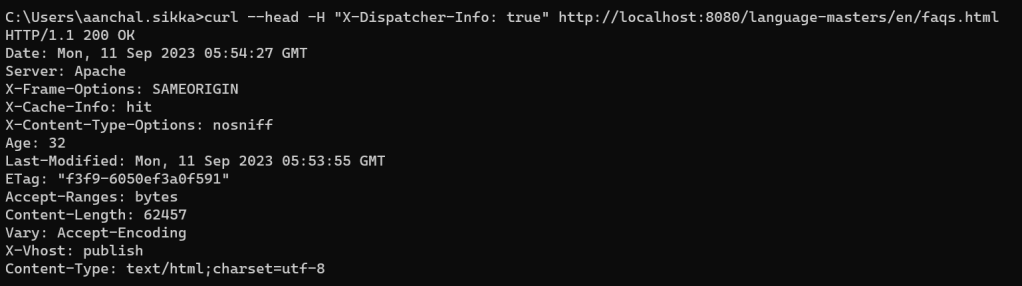
When adding the header X-Dispatcher-Info to a request, Dispatcher answers whether the target was cached, returned from cached, or not cacheable at all. The response header X-Cache-Info contains this information in a readable form. You can use these response headers to debug issues involving responses cached by the Dispatcher.
This functionality is not enabled by default, so for the response header X-Cache-Info to be included, the farm must contain the following entry:
/info "1"
For example,
/farm
{
    /techrevelpublishfarm
    {
        # Include X-Cache-Info response header if X-Dispatcher-Info is in request header
        /info "1"
    }
}
Also, the X-Dispatcher-Info header does not need a value. The “X-Cache-Info” can be validated by Curl/Postman.
For more details on each value returned, please refer to “Debugging the Dispatcher cache” on link
Curl command to troubleshoot headers
You can employ the ‘curl’ command to troubleshoot headers for AEM Dispatcher. Additionally, it’s important to note that when using ‘curl’ for testing,
- Use direct dispatcher URL.
- If there are redirects, use the link of the final url that would appear in browser.
curl -v -H "X-Dispatcher-Info: true" http://localhost:8080/content/wknd/us/en.html
Using Postman
Add “X-Dispatcher-Info” to the headers in the request to debug dispatcher cache. The “X-Cache-Info” response headers provides valuable information regarding whether the target content was cached, retrieved from the cache, or deemed uncacheable.

 Adobe Experience Cloud Blog
2 thoughts on “Exploring AEM Request and Response Headers: Analysis of Browser, CDN and Dispatcher”